> For the complete documentation index, see [llms.txt](https://answeringservicecare.com/docs/llms.txt). Markdown versions of documentation pages are available by appending `.md` to page URLs; this page is available as [Markdown](https://answeringservicecare.com/docs/app/client-portal/access-and-dashboard.md).
# Access and dashboard
Sign in to the ASC Client Portal, read your dashboard widgets, and understand the month-to-date usage report.
The Answering Service Care (ASC) Client Portal is the command center for your answering service account. It gives you a quick snapshot of your most relevant information so you can stay on top of messages, account activity, and usage.
## Sign in
{% stepper %}
{% step %}
### Go to the portal
Open `https://secure.answeringservicecare.com` in your browser.
{% endstep %}
{% step %}
### Enter your credentials
Sign in with your username and password.
{% endstep %}
{% endstepper %}
### Sign in with Google
You can use **Sign in with Google** when your portal email matches your Google account email.
{% hint style="info" %}
A matching Google account email is required for Google sign-in. If the emails do not match, sign in with your username and password instead.
{% endhint %}
## Dashboard
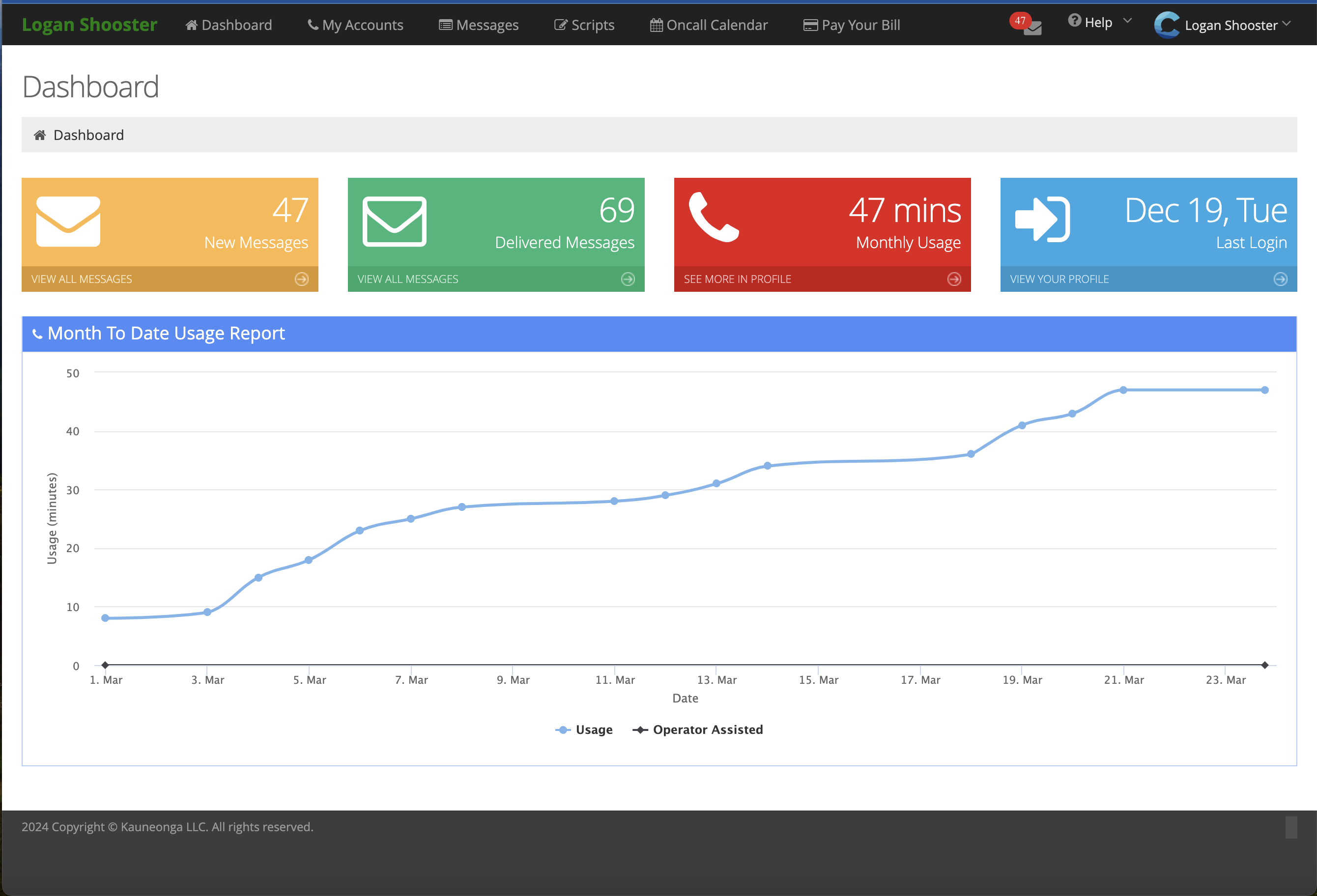
The dashboard is the first thing you see after signing in. It gives you a quick view of the most important account activity and serves as a starting point for the rest of the portal.
The dashboard gives clients quick access to messages, account activity, and reporting entry points.
### Dashboard widgets
The dashboard widgets give you quick details at a glance and act as shortcuts to important areas of your portal.
| Widget | What it shows |
| ---------------------- | --------------------------------------------------------- |
| **New Messages** | The number of unacknowledged messages in your inbox. |
| **Delivered Messages** | The total number of messages that have been acknowledged. |
| **Monthly Usage** | The minutes used in the current month. |
| **Last Login** | The date of your last login to the portal. |
### Month-to-date usage report
The Month To Date Usage Report is a graph that gives you a visual representation of your usage throughout the current month, showing usage trends over time.
The graph differentiates between two usage types:
* **Standard usage**: your day-to-day call usage.
* **Operator-assisted calls**: calls handled with operator assistance.
This breakdown helps you see how your minutes are split across the month and spot busy periods before they affect billing.
## How customers use this page
The dashboard is useful when you want to:
* check whether new messages need follow-up
* confirm recent service activity
* review usage before billing questions
* spot busy periods across the current month
---
# Agent Instructions
This documentation is published with GitBook. GitBook is the documentation platform designed so that both humans and AI agents can read, navigate, and reason over technical content effectively. Learn more at gitbook.com.
## Querying This Documentation
If you need additional information that is not directly available in this page, you can query the documentation dynamically by asking a question.
Perform an HTTP GET request on the current page URL with the `ask` query parameter, and the optional `goal` query parameter:
```
GET https://answeringservicecare.com/docs/app/client-portal/access-and-dashboard.md?ask=&goal=
```
`ask` is the immediate question: it should be specific, self-contained, and written in natural language.
`goal` is optional and describes the broader end goal you are ultimately trying to accomplish on behalf of the user. GitBook uses it to tailor the answer towards what is most useful for that goal.
The response will contain a direct answer to the question and relevant excerpts and sources from the documentation.
Use this mechanism when the answer is not explicitly present in the current page, you need clarification or additional context, or you want to retrieve related documentation sections.